PDF exclude - start
PDF exclude - end
About icons
The Icon Content droplet allows you to insert icons from the Bootstrap and FontAwesome libraries onto a page.
Bootstrap: https://icons.getbootstrap.com/
FontAwesome: https://fontawesome.com/search?ic=free-collection
Compatibility
The official icon websites always display all icons from the most recent versions of these libraries. If there is a version discrepancy between the library included in BlueSpice and the official version, it is possible that not all icons will be available for display within BlueSpice.
Bootstrap icons
- Find a Bootstrap or FontAwesome icon.
- Highlight the class name (it has the format bi bi-myicon) and copy it to your clipboard (ctrl+c) (or remember the class name).
- Go back to your wiki page.
- Open the Droplets dialog in VisualEditor:
- Select the Icon-droplet:
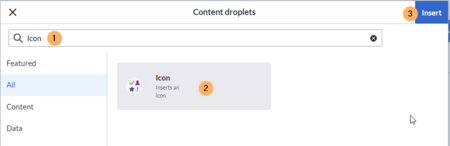
Selecting the icon droplet - Search for the droplet "Icon"
- Click on the Icon-card
- Click the Insert button
- Copy the icon class from your clipboard (or enter it manually):
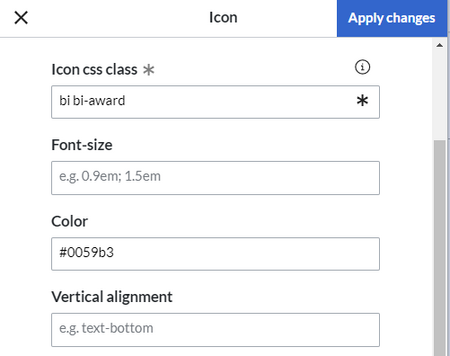
Template editor - Change the font size (optional) if you want the size to be different from the text surrounding it (e.g., from the size of a heading if the icon is placed in the heading or of the paragraph text if the icon is placed in the flow-text. Smaller than text icons are usually sized no smaller than 0.85em and larger icons up to 2.5em.
- Color: If you want the color to be different from the surrounding text, you can specify any web color (e.g., a color name like blue or a hex-valuesuch as #0059b3 for a more specific blue). A list of web colors can be found at https://www.w3schools.com/colors/colors_picker.asp
- Vertical alignment: It should not be necessary to provide an alignment value. The standard is set to text-top and usually works in headings and in flow-text. If it looks a little off, you can try other vertical-alignment values, such as text-bottom. For a full list of possible values, see https://www.w3schools.com/cssref/pr_pos_vertical-align.asp.
- Click Apply changes.


The icon is now displayed on the page.

Icon selection
Here is a selection of supported icons and their class names.
Bootstrap icons
https://icons.getbootstrap.com/
These icons have the syntax bi bi-<iconname>.
bi bi-envelopebi bi-chat-dotsbi bi-telephonebi bi-megaphonebi bi-headsetbi bi-buildingbi bi-bankbi bi-shopbi bi-hospitalbi bi-house-doorbi bi-cartbi bi-credit-cardbi bi-cash-coinbi bi-receiptbi bi-piggy-bankbi bi-truckbi bi-box-seambi bi-wrenchbi bi-hammerbi bi-toolsbi bi-keybi bi-personbi bi-peoplebi bi-person-badgebi bi-briefcasebi bi-calendarbi bi-clockbi bi-lightbulbbi bi-globebi bi-shield-checkFontAwesome icons
https://fontawesome.com/search?ic=free-collection
These icons have the syntax fas-fa-<iconname>.
fas fa-envelopefas fa-commentsfas fa-phonefas fa-bullhornfas fa-headsetfas fa-buildingfas fa-universityfas fa-storefas fa-hospitalfas fa-homefas fa-industryfas fa-warehousefas fa-shopping-cartfas fa-credit-cardfas fa-coinsfas fa-receiptfas fa-piggy-bankfas fa-truckfas fa-boxfas fa-chart-linefas fa-wrenchfas fa-hammerfas fa-toolsfas fa-keyfas fa-userfas fa-usersfas fa-id-badgefas fa-briefcasefas fa-handshakefas fa-calendar-altfas fa-clockfas fa-lightbulbfas fa-globe


