No edit summary Tag: 2017 source edit |
No edit summary Tag: 2017 source edit |
||
| (2 intermediate revisions by the same user not shown) | |||
| Line 2: | Line 2: | ||
The '''Icon''' Content droplet allows you to insert icons from the Bootstrap and FontAwesome libraries onto a page. | The '''Icon''' Content droplet allows you to insert icons from the Bootstrap and FontAwesome libraries onto a page. | ||
Bootstrap: https://icons.getbootstrap.com/ | * Bootstrap: https://icons.getbootstrap.com/ | ||
* FontAwesome: https://fontawesome.com/search?ic=free-collection | |||
FontAwesome: https://fontawesome.com/search?ic=free-collection | |||
* View the icon selection from both libraries [[Manual:Extension/ContentDroplets/Icon#Icon selection|at the end of this page]]. | |||
{{Textbox|boxtype=note|header=Compatibility|text=The official icon websites always display all icons from the most recent versions of these libraries. If there is a version discrepancy between the library included in BlueSpice and the official version, it is possible that not all icons will be available for display within BlueSpice.|icon=yes}} | {{Textbox|boxtype=note|header=Compatibility|text=The official icon websites always display all icons from the most recent versions of these libraries. If there is a version discrepancy between the library included in BlueSpice and the official version, it is possible that not all icons will be available for display within BlueSpice.|icon=yes}} | ||
=== Bootstrap icons === | === Bootstrap icons === | ||
#'''Find''' a | #'''Find''' a Bootstrap or FontAwesome icon. | ||
#''' | #'''Highlight''' the <nowiki/>class name (it has the format ''bi bi-myicon'') and '''copy''' it to your clipb<nowiki/>oard (ctrl+c) (or remember the class name). | ||
#'''Go back''' to your wiki page. | #'''Go back''' to your wiki page. | ||
#'''Open''' the Droplets dialog in VisualEditor: | #'''Open''' the Droplets dialog in VisualEditor: | ||
| Line 18: | Line 17: | ||
##'''Click''' on the Icon-card | ##'''Click''' on the Icon-card | ||
##'''Click''' the ''Insert'' button | ##'''Click''' the ''Insert'' button | ||
# '''Copy''' the icon class from your clipboard:[[File:template-editor-icon.png|alt=Template editor|center|thumb|450x450px|Template editor]] | # '''Copy''' the icon class from your clipboard (or enter it manually):[[File:template-editor-icon.png|alt=Template editor|center|thumb|450x450px|Template editor]] | ||
#'''Change''' the font size (optional) if you want the size to be different from the text surrounding it (e.g., from the size of a heading if the icon is placed in the heading or of the paragraph text if the icon is placed in the flow-text. Smaller than text icons are usually sized no smaller than 0.85em and larger icons up to 2.5em. | #'''Change''' the font size (optional) if you want the size to be different from the text surrounding it (e.g., from the size of a heading if the icon is placed in the heading or of the paragraph text if the icon is placed in the flow-text. Smaller than text icons are usually sized no smaller than 0.85em and larger icons up to 2.5em. | ||
#'''Color:''' If you want the color to be different from the surrounding text, you can specify any web color (e.g., a color name like blue or a hex-valuesuch as #0059b3 for a more specific blue). A list of web colors can be found at https://www.w3schools.com/colors/colors_picker.asp | #'''Color:''' If you want the color to be different from the surrounding text, you can specify any web color (e.g., a color name like blue or a hex-valuesuch as #0059b3 for a more specific blue). A list of web colors can be found at https://www.w3schools.com/colors/colors_picker.asp | ||
| Line 28: | Line 27: | ||
[[File:bootstrap-icon-on page.png|alt=Inserted Bootstrap icon|center|thumb|450x450px|Inserted Bootstrap icon]] | [[File:bootstrap-icon-on page.png|alt=Inserted Bootstrap icon|center|thumb|450x450px|Inserted Bootstrap icon]] | ||
== | == Icon selection == | ||
Here is a selection of supported icons and their class names. | |||
=== Bootstrap icons === | |||
=== Bootstrap | |||
https://icons.getbootstrap.com/ | https://icons.getbootstrap.com/ | ||
These icons have the syntax <code>bi bi-<iconname></code>. | |||
| Line 84: | Line 80: | ||
{{IconCard|globe}} | {{IconCard|globe}} | ||
{{IconCard|shield-check}} | {{IconCard|shield-check}} | ||
<!-- Analytics and success --> | |||
{{IconCard|graph-up}} | |||
{{IconCard|pie-chart}} | |||
{{IconCard|trophy}} | |||
{{IconCard|award}} | |||
<!-- Commerce --> | |||
{{IconCard|bag}} | |||
{{IconCard|gift}} | |||
<!-- Office and devices --> | |||
{{IconCard|printer}} | |||
{{IconCard|camera}} | |||
{{IconCard|laptop}} | |||
{{IconCard|cpu}} | |||
<!-- Documents and organization --> | |||
{{IconCard|book}} | |||
{{IconCard|folder}} | |||
{{IconCard|clipboard-check}} | |||
<!-- General --> | |||
{{IconCard|geo-alt}} | |||
{{IconCard|lock}} | |||
</div> | </div> | ||
=== FontAwesome | === FontAwesome icons === | ||
https://fontawesome.com/search?ic=free-collection | https://fontawesome.com/search?ic=free-collection | ||
These icons have the syntax <code>fas-fa-<iconname></code>. | |||
| Line 140: | Line 163: | ||
{{IconCardFA|lightbulb}} | {{IconCardFA|lightbulb}} | ||
{{IconCardFA|globe}} | {{IconCardFA|globe}} | ||
<!-- Analytics and success --> | |||
{{IconCardFA|chart-pie}} | |||
{{IconCardFA|trophy}} | |||
{{IconCardFA|award}} | |||
<!-- Commerce --> | |||
{{IconCardFA|shopping-bag}} | |||
{{IconCardFA|gift}} | |||
<!-- Office and devices --> | |||
{{IconCardFA|print}} | |||
{{IconCardFA|camera}} | |||
{{IconCardFA|laptop}} | |||
{{IconCardFA|microchip}} | |||
<!-- Documents and organization --> | |||
{{IconCardFA|book}} | |||
{{IconCardFA|folder}} | |||
{{IconCardFA|clipboard-check}} | |||
<!-- People and education --> | |||
{{IconCardFA|graduation-cap}} | |||
<!-- General --> | |||
{{IconCardFA|map-marker-alt}} | |||
{{IconCardFA|lock}} | |||
</div> | |||
__FORCETOC__ | __FORCETOC__ | ||
[[de:Handbuch:Erweiterung/ContentDroplets/Symbol]] | |||
Latest revision as of 15:24, 27 October 2026
PDF exclude - start
PDF exclude - end
About icons
The Icon Content droplet allows you to insert icons from the Bootstrap and FontAwesome libraries onto a page.
- Bootstrap: https://icons.getbootstrap.com/
- FontAwesome: https://fontawesome.com/search?ic=free-collection
- View the icon selection from both libraries at the end of this page.
Compatibility
The official icon websites always display all icons from the most recent versions of these libraries. If there is a version discrepancy between the library included in BlueSpice and the official version, it is possible that not all icons will be available for display within BlueSpice.
Bootstrap icons
- Find a Bootstrap or FontAwesome icon.
- Highlight the class name (it has the format bi bi-myicon) and copy it to your clipboard (ctrl+c) (or remember the class name).
- Go back to your wiki page.
- Open the Droplets dialog in VisualEditor:
- Select the Icon-droplet:
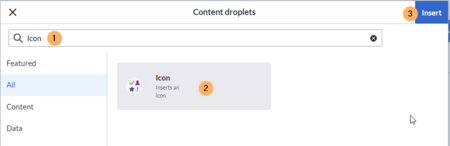
Selecting the icon droplet - Search for the droplet "Icon"
- Click on the Icon-card
- Click the Insert button
- Copy the icon class from your clipboard (or enter it manually):
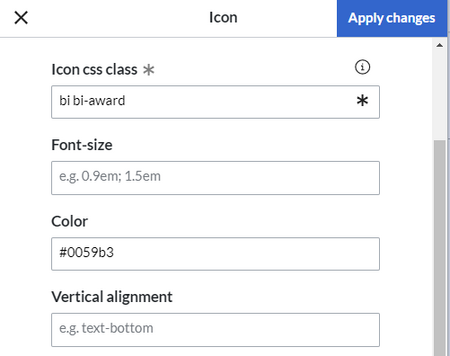
Template editor - Change the font size (optional) if you want the size to be different from the text surrounding it (e.g., from the size of a heading if the icon is placed in the heading or of the paragraph text if the icon is placed in the flow-text. Smaller than text icons are usually sized no smaller than 0.85em and larger icons up to 2.5em.
- Color: If you want the color to be different from the surrounding text, you can specify any web color (e.g., a color name like blue or a hex-valuesuch as #0059b3 for a more specific blue). A list of web colors can be found at https://www.w3schools.com/colors/colors_picker.asp
- Vertical alignment: It should not be necessary to provide an alignment value. The standard is set to text-top and usually works in headings and in flow-text. If it looks a little off, you can try other vertical-alignment values, such as text-bottom. For a full list of possible values, see https://www.w3schools.com/cssref/pr_pos_vertical-align.asp.
- Click Apply changes.


The icon is now displayed on the page.

Icon selection
Here is a selection of supported icons and their class names.
Bootstrap icons
https://icons.getbootstrap.com/
These icons have the syntax bi bi-<iconname>.
bi bi-envelopebi bi-chat-dotsbi bi-telephonebi bi-megaphonebi bi-headsetbi bi-buildingbi bi-bankbi bi-shopbi bi-hospitalbi bi-house-doorbi bi-cartbi bi-credit-cardbi bi-cash-coinbi bi-receiptbi bi-piggy-bankbi bi-truckbi bi-box-seambi bi-wrenchbi bi-hammerbi bi-toolsbi bi-keybi bi-personbi bi-peoplebi bi-person-badgebi bi-briefcasebi bi-calendarbi bi-clockbi bi-lightbulbbi bi-globebi bi-shield-checkbi bi-graph-upbi bi-pie-chartbi bi-trophybi bi-awardbi bi-bagbi bi-giftbi bi-printerbi bi-camerabi bi-laptopbi bi-cpubi bi-bookbi bi-folderbi bi-clipboard-checkbi bi-geo-altbi bi-lockFontAwesome icons
https://fontawesome.com/search?ic=free-collection
These icons have the syntax fas-fa-<iconname>.
fas fa-envelopefas fa-commentsfas fa-phonefas fa-bullhornfas fa-headsetfas fa-buildingfas fa-universityfas fa-storefas fa-hospitalfas fa-homefas fa-industryfas fa-warehousefas fa-shopping-cartfas fa-credit-cardfas fa-coinsfas fa-receiptfas fa-piggy-bankfas fa-truckfas fa-boxfas fa-chart-linefas fa-wrenchfas fa-hammerfas fa-toolsfas fa-keyfas fa-userfas fa-usersfas fa-id-badgefas fa-briefcasefas fa-handshakefas fa-calendar-altfas fa-clockfas fa-lightbulbfas fa-globefas fa-chart-piefas fa-trophyfas fa-awardfas fa-shopping-bagfas fa-giftfas fa-printfas fa-camerafas fa-laptopfas fa-microchipfas fa-bookfas fa-folderfas fa-clipboard-checkfas fa-graduation-capfas fa-map-marker-altfas fa-lock


