No edit summary Tags: Reverted 2017 source edit |
No edit summary Tags: Reverted 2017 source edit |
||
| Line 1: | Line 1: | ||
== Translation of a page == | == Translation of a page == | ||
Revision as of 15:48, 5 November 2026
Translation of a page
Pages can be translated from the source wiki and automatically created in another language wiki instance.
To translate a page:
- Click on the Translate link in the page tools. A dialog opens.
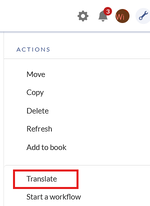
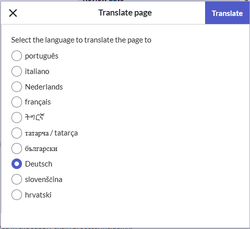
Translate link - Select a target language. The number of available languages depends on available language instances in your wiki farm.
Select target language - Click Translate to start the translation.
- Check the suggested page name in the target wiki and change it if necessary. This dialog box only appears for the first translation of the page.
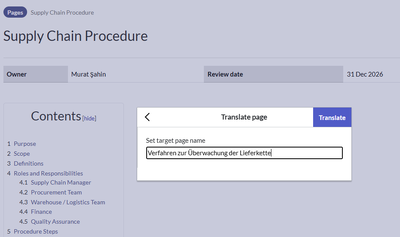
Review or change target page name - Click Translate again to save the page name. The translation preview is shown.
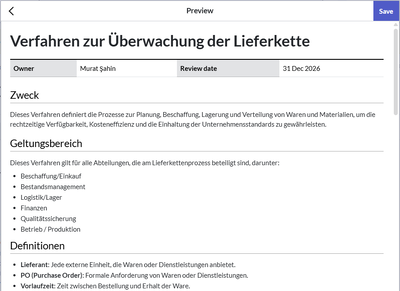
Translation preview - Click Save to save the translated page in the target wiki. A confirmation dialog window shows the result of the transfer.
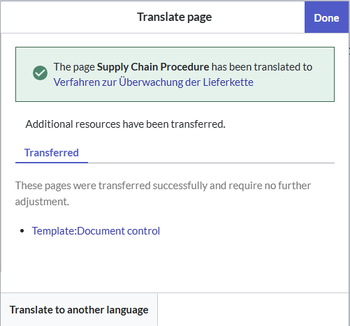
Translation confirmation - Click Done. You can now go directly to the page in the target wiki. The original language page now shows a language selector in the title area.
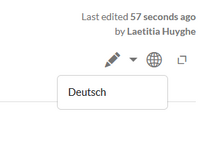
Language selector


Subsequent translations
If a page already exists in the target wiki, embedded resources like templates are not pushed to the target wiki again. Templates are maintained separately in each language wiki, since the translation service cannot determine which template elements need translation. After the translation is complete, the wiki shows a confirmation window that lists any embedded resources that have not been transferred to the target wiki.

Merge page content
If a page has already been translated, subsequent translations overwrite the previous page.
However, it is possible to configure in the server to first store subsequent translations in a draft namespace. Users than have to merge any changes between the translation revisions manually. In this case, see the documentation of the MergeArticles extension.
Translated elements
The translated content during the translation process includes:
- Page text
- Page title (the title can be adjusted during the initial translation)
- Display title
- Categories
- The categories specified on a page are translated during the initial translation of the page, unless the categories have already been translated via another wiki page.
- If a category from the source wiki already exists in the target wiki due to a previous translation of the page or due to a translation via another page, it is excluded from further translation. This prevents the category from being replaced by the translation service with a new, different translation.
- Internal links: Wiki links are translated. If a page does not exist in the target wiki, it is displayed accordingly as a "wanted page" (red link).
- Embedded image files (png, jpg, gif,...) are transferred to the target wiki:
- The file name is retained. For text links, the link label is translated.
- The description and alternative text of embedded files are translated.
- Attachments: Attachments using the
<attachments>tag are transferred like all files to the target wiki. The file label is translated. - Media (pdf, docx, xlsx, ...): The link description is translated, and the original document is copied to the target wiki.
- Galleries: When a gallery droplet is inserted on a page, the file names are not translated, and the gallery is displayed correctly in the target wiki. The image captions are translated.
- Templates: Templates are transferred with their original page name if they do not exist in the target wiki. The contents of the template are not translated. The different language versions of templates are maintained manually for each language. If template parameters should be translated, they have to be configured server-side.
- Magic words are translated into their canonical name (EN).
Limitation in earlier BlueSpice versions: If a page is too large, the DeepL API cannot translate it. The best approach is to split the page into smaller subpages or upgrade to the latest version of BlueSpice.



